
Implants and lots
Implant and lot tracking: which lot was used in each treatment is on record.
You link the product and lot used to the treatment. When the treatment is completed and approved, the product is deducted from stock. You scan the DataMatrix code on the box for stock in and out.
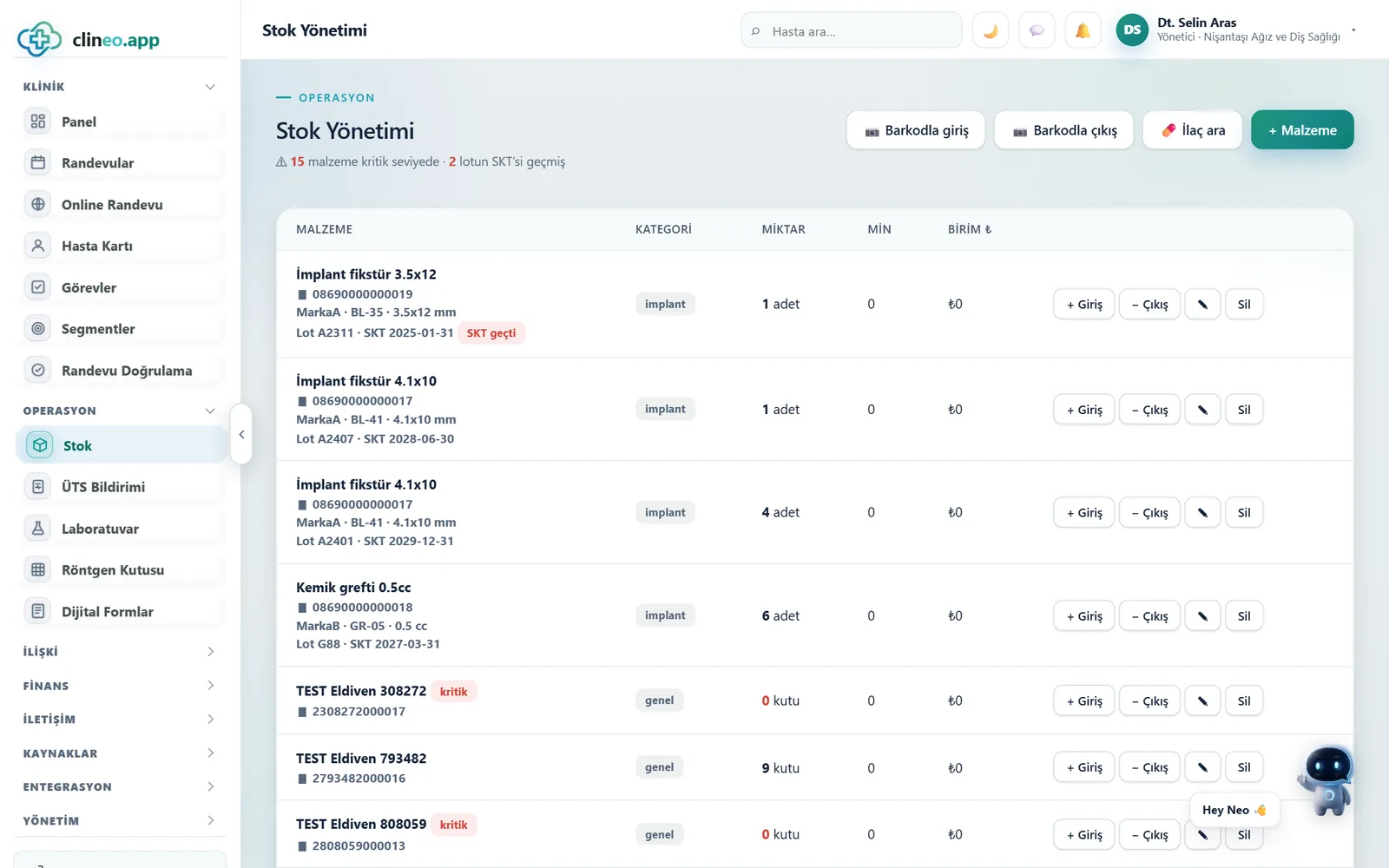
From treatment to inventory
Lot information inside the treatment.
You select the product used from the treatment record; it appears next to the treatment with brand and lot information.
Lots in stock and not expired are listed; the one with the nearest date comes first.
If no lot is linked to an implant treatment, the record is flagged with a yellow warning.
The product leaves stock when the treatment is completed and approved; stock isn’t affected at the planning stage.
On the patient record
Materials used, together with the tooth.
The patient’s record lists every product applied to that patient in tooth order.
Product name, brand, model, size, lot, serial number and expiry date are recorded as they were at the moment of linking to the treatment.
You also enter the day the product was applied.
When choosing a lot, you search by product name, brand, model, lot, serial number or barcode.
A product past its expiry date can’t be linked to a treatment.
An implant with a serial number can’t be linked with a quantity greater than one.
If you remove the treatment’s approval or take the product off, the stock movement is reversed.
DataMatrix code
Scan it on the way in and out.
You scan the code on the box with a handheld scanner or a camera; product, lot, expiry date and serial number are parsed.
Some handheld scanners can’t send the field separator. Clineo chooses the most consistent parse and asks you to confirm.
A barcode whose check digit doesn’t match can’t open a new product card.
If the scanned lot isn’t in stock, nothing is deducted from another lot; you see a warning.
FAQ
About Implant and Lot Tracking
If your answer isn’t here, you can ask us directly in the demo call.
Ask in the demoWhich plan includes it?
Do I need to buy a DataMatrix scanner?
What if the same lot is added to the same treatment twice?
Is a treatment at the planning stage deducted from stock?
Related
Modules that work together.
Let’s look together
How would your clinic work with Clineo?
Let’s plan a short product walkthrough tailored to your specialty and team.