Each doctor has their own diary
Nobody can see at a glance how full the clinic really is that day.

Features
The 41 features in our plans plus the core modules included in every plan. All of them work on the same patient record.
All featuresSpecialties
Appointments, patient record and finance are the same in every specialty. The examination screen adapts to yours.
All specialtiesClineo Lab
Turn the case sent by a clinic into a work order, follow production on a board and manage each clinic’s account in one place.
Dental lab softwareResources
Articles on regulations, switching systems and day-to-day operations.
All articlesCalendar Management
See doctor, room and device calendars on the same screen. Prevent clashes, keep empty hours filled and manage the day at a glance.
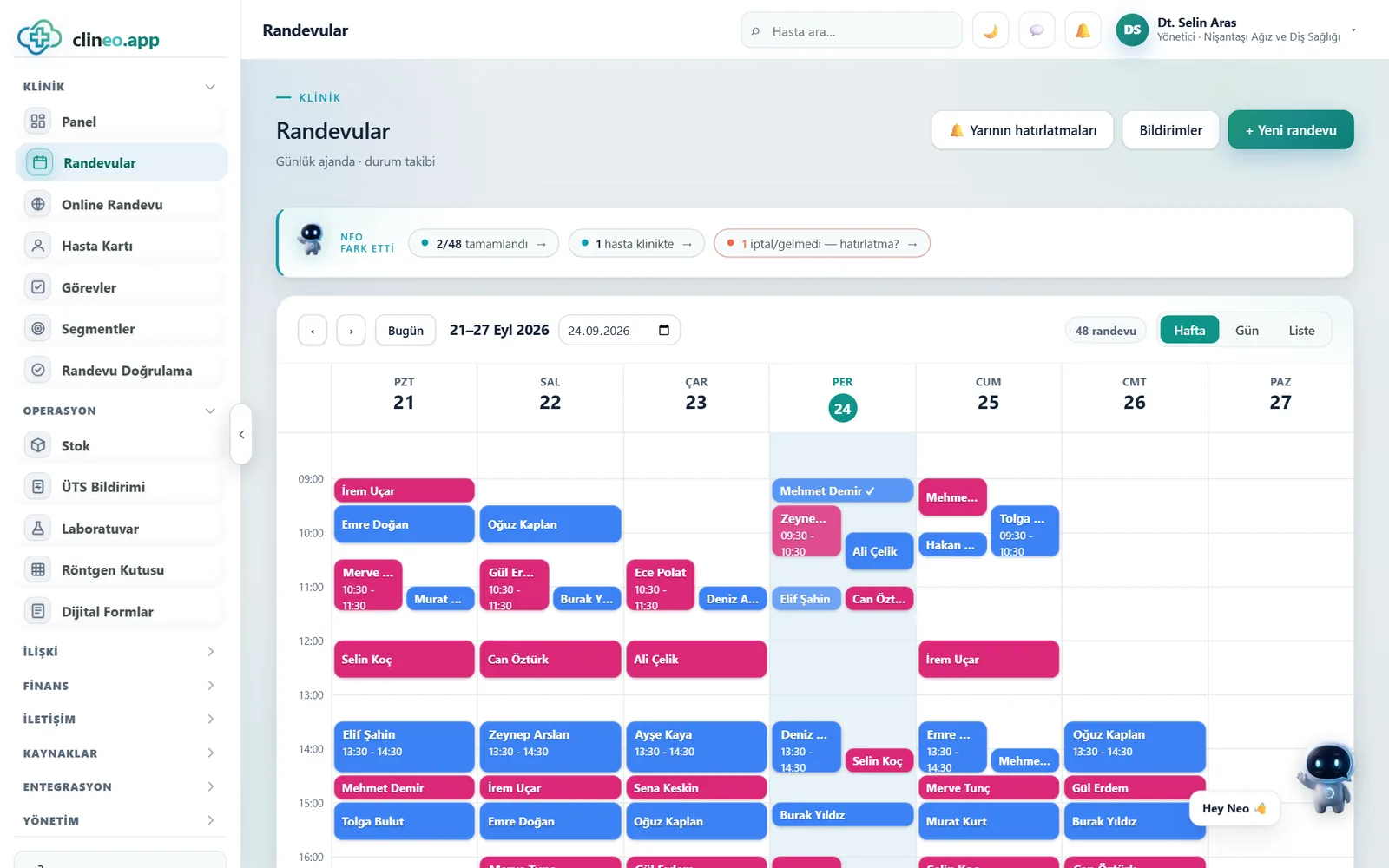
One screen, the whole agenda
Switch between day, week and doctor views. Move an appointment by drag and drop; the system warns of clashes instantly.
Familiar problems
When appointments are kept in more than one place, which record is right becomes a matter of debate.
Nobody can see at a glance how full the clinic really is that day.
Appointments are given by doctor, but the room or device isn’t available.
When a time changes, the information stays with one person; the patient comes at the old time.
What changes
You give the same appointments; they’re all read from one screen.
It’s unclear which record is current.
One calendar — Doctors, rooms and resources sit in the same view. The clinic’s occupancy is read at a glance.
When the patient arrives, the room is taken.
Planning by resource — Rooms and devices are in the calendar too; clashes show when the appointment is given.
The patient comes at the old time.
Changes on record — You move the appointment by dragging; the new time is written to the record everyone sees.
Why Clineo
The calendar shares the same data with appointments, the patient card and payments.
A coloured calendar for each doctor and room; all merge into one view.
Hold and drop to move an appointment to another time or doctor.
If a double booking is attempted for the same room or doctor, it warns you instantly.
You see available times at a glance and fit callers in quickly.
From front desk to doctor, everyone sees the same up-to-date calendar.
The same calendar at the same moment on desktop, tablet and phone.
How it works
The calendar, appointments and the patient card work on the same data; update one place and everywhere updates.
Switch to day, week or doctor view.
Click a free slot and choose the patient and procedure.
Change the time or doctor by drag and drop.
The change appears instantly in everyone’s calendar.
Works together with
The calendar is the centre of the clinic’s daily flow. Most modules start from here.
patient requests land in the calendar
reminders go out for appointments in the calendar
go from the appointment to the patient card
spread sessions across the calendar
see occupancy and busy periods in reports
AI assistant
When you say "open today’s appointments" or ask "how many patients tomorrow", Neo brings up the calendar. In the morning you know how the day will go before opening the screen.
New · 23–24 September
When you sign in, the day’s agenda is visible without scrolling.
The patient’s name appears in the weekly block; you see who it is without clicking.
Appointments whose time has passed without a status update are listed separately on the dashboard.
When the patient scans the QR at the front desk, their appointment becomes “arrived”.
FAQ
If your answer isn’t here, you can ask us directly in the demo call.
Ask in the demoReady when you are
Let’s plan a short walkthrough for your specialty so you can see this feature in your own clinic workflow.