Information locked on the desktop
To check an appointment you have to go back to the clinic or call someone.

Features
The 41 features in our plans plus the core modules included in every plan. All of them work on the same patient record.
All featuresSpecialties
Appointments, patient record and finance are the same in every specialty. The examination screen adapts to yours.
All specialtiesClineo Lab
Turn the case sent by a clinic into a work order, follow production on a board and manage each clinic’s account in one place.
Dental lab softwareResources
Articles on regulations, switching systems and day-to-day operations.
All articlesMobile Use
Install Clineo on your phone or tablet like an app. Reach appointments, patient cards and payments without being at your desk.
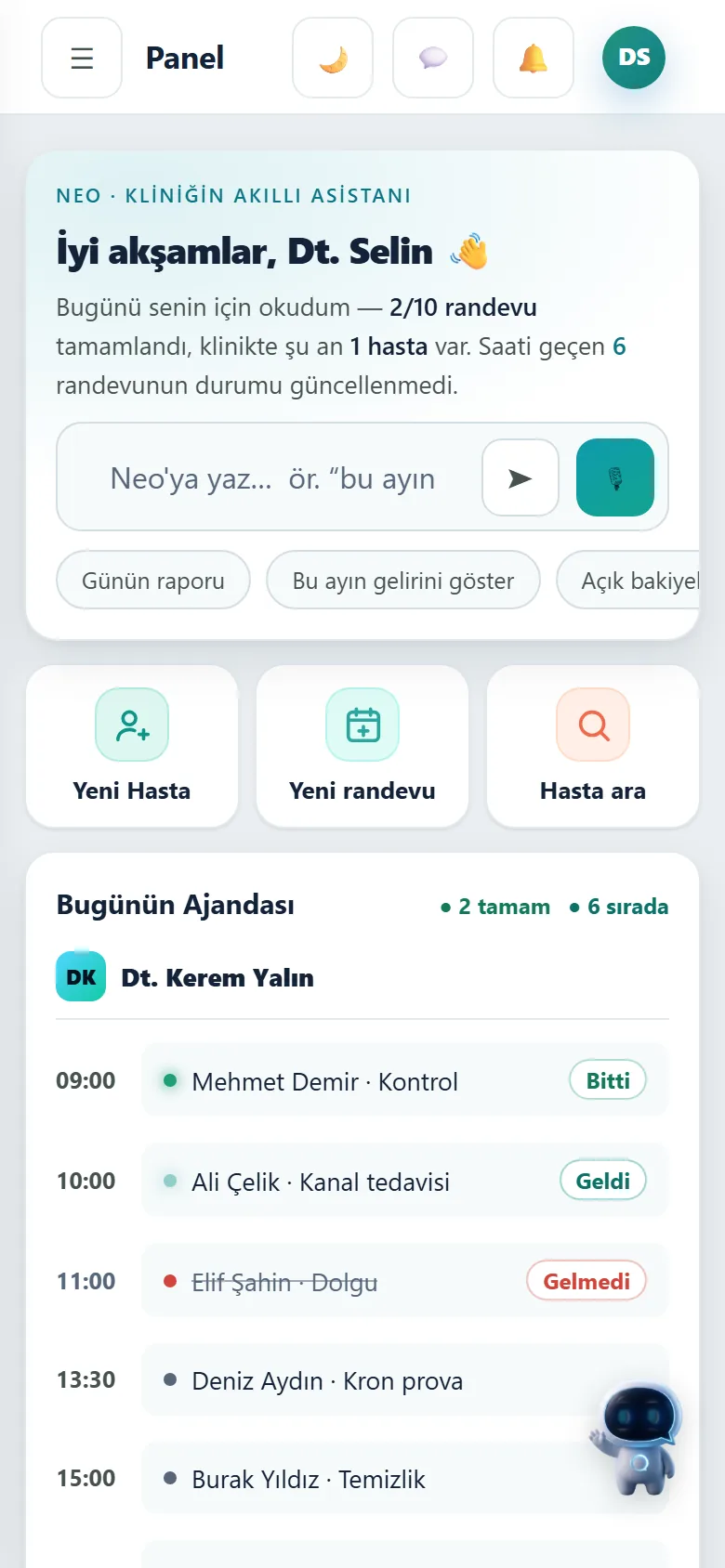
As powerful as the desktop
Add it to your home screen and it opens like an app. Appointments, patient cards, messages and payments in your pocket; the same data as the desktop.
Familiar problems
Every hour you’re not at your desk, your access to clinic information is cut off.
To check an appointment you have to go back to the clinic or call someone.
Getting the team to install a program on their phones and update versions is a job in itself.
Nobody is sure whether what they see on the phone is up to date.
What changes
The screen shrinks; your permissions and data stay the same.
Outside the clinic you’re in the dark.
Installs on the home screen — You add it from the browser with one tap and it opens full screen like an app.
Separate effort for every device.
No installation — No store needed, no version updates to worry about. Same address, app-like experience.
It gets checked again to see if it’s current.
One source of data — Whatever is on the desktop is the same on mobile. Not a separate program, but the pocket view of the same account.
Why Clineo
The mobile version uses the same account and data.
Add to home screen; full screen, fast opening.
No store needed; installs from the browser with one tap.
Whatever is on the desktop is on mobile too, synced instantly.
See new appointments and messages on your phone.
Follow the day even when you’re away from the clinic.
Sessions are protected; even if a device is lost, the data is safe.
How it works
The mobile version uses the same account; no separate installation, no separate data.
Go to Clineo in your phone’s browser.
Choose "Add to Home Screen" from the menu.
Launch it full screen from the icon.
Sign in with your account; your clinic is in your pocket.
Works together with
Mobile is not a separate product; the whole clinic works the same way on a small screen.
see the day on your phone, move appointments
reach the patient card from outside the clinic
send a payment link from your phone
open a support request from mobile
session and permission rules are the same on mobile
AI assistant
When you say "open today’s appointments" on your phone, Neo works the same way. On a small screen, instead of searching menus you say what you want.
Where to start
Setup is one-off and takes two minutes. Open Clineo in your phone’s browser, choose "Add to Home Screen" from the menu and sign in from the icon that appears. Show your team the same step once, and it opens like an app on everyone’s phone. Since there is no store download or version updating, the same step is enough for new staff too.
New · 24 September
Turn on “Large text” under My Profile → Appearance and every screen gets bigger.
Switch to the dark theme when working in the evening.
A white side menu with collapsible groups; the sections you use stay open.
When a new version comes out, the app refreshes itself at a safe moment. No need for Ctrl+F5 or reinstalling on the phone.
FAQ
If your answer isn’t here, you can ask us directly in the demo call.
Ask in the demoReady when you are
Let’s plan a short walkthrough for your specialty so you can see this feature in your own clinic workflow.